How to sign applications on Windows (SDK)
Let's take a look at signing an application on Windows using the Windows SDK (signtool) and the Code Signing certificate. The manual assumes a prepared Code Signing certificate on token and an installed Windows SDK development environment on the Windows operating system. Download the SDK for the appropriate version of your Windows from the Microsoft website, such as the Windows Software Development Kit (SDK) for Windows 10.

Code Signing certificates (OV and EV) can no longer be issued other than stored on the token. You can no longer get a Code Signing certificate as a PFX file!
Using Signtool
Signtool.exe is a program that signs applications using a Code Signing certificate. After installing the Windows SDK, use it via the command line. To sign applications, you need to know the basic parameters so that you can properly call the application signing with the correct certificate and settings.
Signing actually takes place via the command line and the certificate simply needs to be stored in a file on the given computer (it is not installed anywhere).
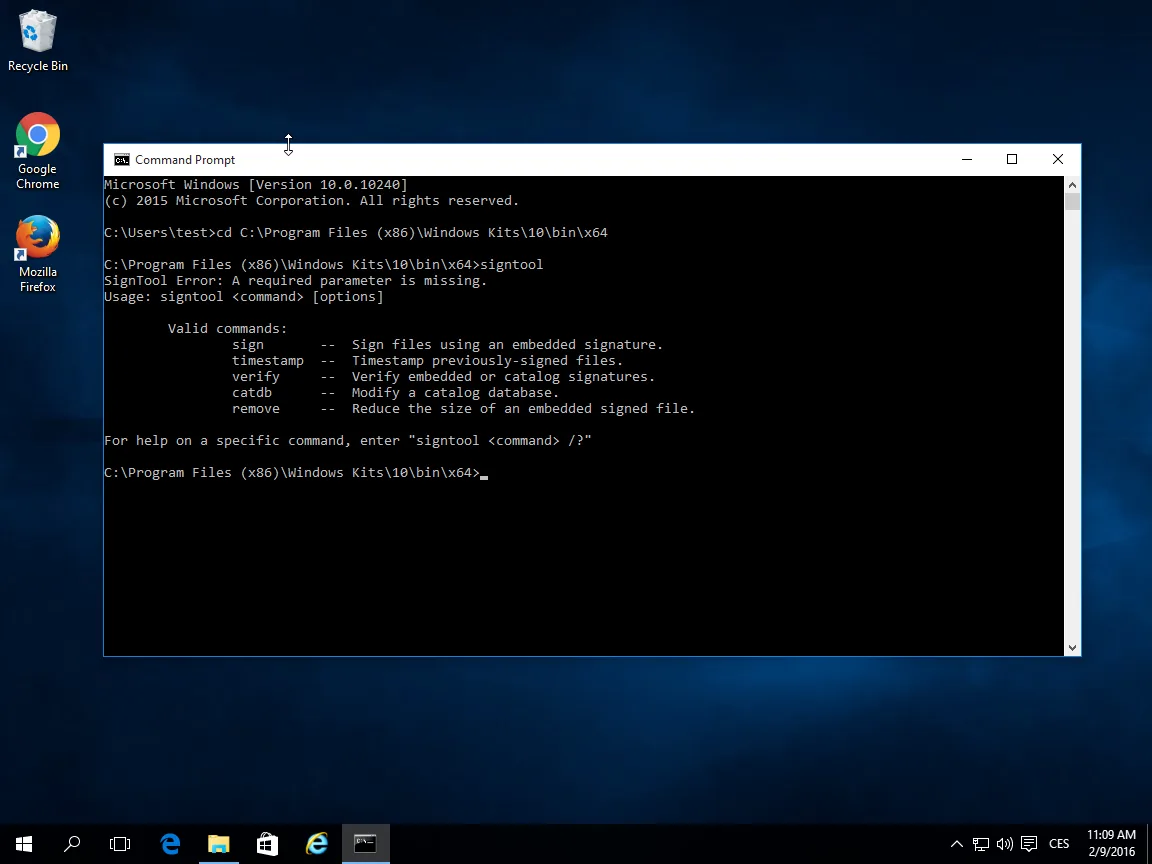
The basic parameters (commands) for the signature are the following:
signtool command / parameter
From the commands, use Sign to sign and Verify to verify the file's signature. Timestamp is a command to insert a timestamp, but you can do it when signing the file.
Useful parameters:
- /f SignCertFile – If you use a PFX file for signing, this command points to its location. It is no longer possible to get a Code Signing certificate in PFX.
- /s StoreName – If you are using a certificate store (e.g. on a token), specify which one to use. The default is My.
- /t URL – Adds a timestamp and a link to it. The URL of the timestamp servers can be found below.
- /td - algorithm of hash (digest) in time stamp. Choose at least sha256 or higher.
- /fd - algorithm of hash (digest). Choose at least sha256 or higher.
You can find the complete documentation on the Microsoft website or by entering the command „signtool sign /?“.
For example, the entire file signing command might look like this:
SignTool sign /n "My Company Certificate" /td sha256 /fd sha256 /t http://timestamp.digicert.com C:\test.exeAlways use a timestamp. It ensures the credibility of the signed application even after the expiration of the certificate used for the signature. This is very important because you will not have to re-sign older applications (typically after two years of Code Signing certificate expiration) so that they are not untrusted. If you use a timestamp at the time of signing and the certificate is valid, the application will be valid in the future.
There are more servers providing timestamps; we recommend using DigiCert's timestamp server: http://timestamp.digicert.com/
This server has no website on port 80, so it is pointless visiting it in a browser (you will not see anything).
Transition from Code Signing (PFX) to signing with token: You do not need to change anything when signing. Only if you are used to signing with a PFX file, then start using the link to StoreName (parameter /s My). The Safenet utility takes care of everything.
Certificate storage
The certificate can be stored in several places (in multiple repositories) and you can "call" it in several ways. It used to be possible to save the certificate as a PFX file, but this is no longer possible. Anyone can steal your PFX file and even though PFX is password protected, it is a big security risk (passwords are often very weak). PFX is particularly suitable for S/MIME certificate backups or for the web.
A common way to store a Code signing certificate is to store it on a token and then call it based on the subject in the certificate. This method is secure and practically the same as earlier signing with PFX. Without the private key, which cannot be exported from the token, the certificate is useless and its misuse is therefore not possible; if the password is entered incorrectly five times, the token will be blocked.
The recommended and modern way to store a certificate is in the cloud. We recommend abandoning the token and using cloud HSMs, which are more secure and do not change the signing workflow for you. See the Code Signing Centrum article.
A signature using the repository then requires the /n SubjectName parameter:
signtool sign /n "My Company Certificate" /td sha256 /fd sha256 /t http://timestamp.digicert.com C:\test.exeOr you can choose the default repository My and the signing SW will automatically find the certificate itself:
signtool sign /s My /td sha256 /fd sha256 /t http://timestamp.digicert.com C:\test.exeAutomating Code Signing with cloud HSM
Automating code signing is highly sought after, but you cannot sign automatically with a certificate on a token; you cannot use it on a server either. Fortunately, we know of services suitable for automating signing. DigiCert offers KeyLocker, or Software Trust Manager. You can also keep signing keys in a cloud HSM on Azure or Google Cloud.
For more information on options for automating code signing, see the Code Signing Centrum article.
Signature verification
You can now sign your application and you have provided it with the first trusted signature. Now you are probably wondering how to check your signature.
One way to check is by using signtool:
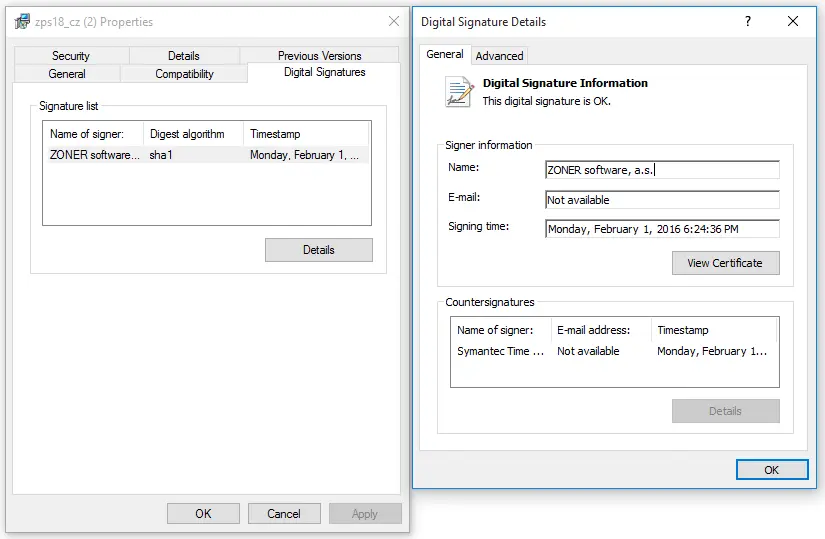
signtool verify C:\test.exeIt is easier to check by viewing the properties of the file in Windows Explorer. You can "dissect" the signature detail down to the detail of the used certificate.
Do you have questions?
Do not hesitate to contact our customer support, who will advise and help you.



ZONER, inc.
3902 Henderson Blvd Suite 208-187
Tampa, FL 33629
Reg. No.: 49437381
VAT ID: CZ49437381
Has this article been useful?
Thank you for your feedback on this article.
We are sorry that you did not find the required information here.
Please help us to improve this article. Write us what you have expected and not found out.