How to work with certificates in Java keystore
The following article is for users using the Apache Tomcat server, signing Java applications, and working with the Java keystore in general.
Notice: Creating a CSR for Code Signing is the same as for a server certificate. Common name is then the name of your organization.
Create a keystore and key pair
This command creates a new keystore and key pair that you use to create the certificate request.
keytool -genkey -alias test -keyalg RSA -keystore test.jks -keysize 3072You will then be prompted to enter the keystore password and specify it. The entered data will match those in the CSR:
What is your first and last name?
  [Unknown]:  Test Test
What is the name of your organizational unit?
  [Unknown]:  Unit
What is the name of your organization?
  [Unknown]:  Test corp.
What is the name of your City or Locality?
  [Unknown]:  Some City
What is the name of your State or Province?
  [Unknown]:  Some State
What is the two-letter country code for this unit?
  [Unknown]:  US
Is CN=Test Test, OU=Unit, O=Test corp., L=Some City, ST=Some State, C=US correct?
  [no]:  yes
Create a CSR
To create a CSR, use the following command:
keytool -certreq -alias test -keystore test.jks -file test.csrYou entered the requester details when you created the key pair in the previous step, so the keytool no longer asks for them.
The -file test.csr parameter is used to output the CSR to a file. If you omit it, the CSR will be displayed in the terminal and you can copy it directly to our order. Then just wait for the certificate to be issued.
Import issued certificate into keystore
You will receive the issued certificate from SSLmarket by e-mail and it must be imported into the keystore.
Keystore requires that the certificate be trusted and the issuing authority is already present in the keystore when importing certificates. This means that certificates are imported in “reverse order” – from the root certificate down to the server certificate.
Import with the command:
keytool -import -trustcacerts -alias test -file test.txt -keystore test.jksError: Failed to establish chain from reply
The previously requested CA import to the keystore causes a frequent keytool error: java.lang.Exception: Failed to establish chain from reply error. The error means that there is no issuing CA/intermediate certificate in the keystore.
To fix this:
-
Import in reverse order – CA certificates first:
keytool -import -trustcacerts -alias root -file intermediate.crt -keystore test.jks -
Or import the certificate in PKCS#7 (P7B) format. Convert the linux_cert+ca.pem file you received from SSLmarket to P7B with the following command:
openssl crl2pkcs7 -nocrl -certfile linux_cert+ca.pem -out linux_cert+ca.p7band then import this file into the keystore:
keytool -import -trustcacerts -alias test -file linux_cert+ca.p7b -keystore test.jksThe result Certificate reply was installed in keystore means a successful import, while the error Public keys in reply and keystore don't match means that there is no certificate for the domain in the P7B file (server, endpoint), only the intermediate.
-
Or import a certificate in PKCS#12 (PFX) format, in which everything is together:
keytool -importkeystore -srckeystore pkcs12file.p12 -srcstoretype pkcs12 -destkeystore test.jks -deststoretype JKSImporting with PKCS#12 is the fastest, but if you were creating the CSR directly in the keystore, it is unnecessary (requires its export).
GUI Tools
If you don't want to work with a keystore using a command line or terminal, you can use one of the few GUI tools.
Both of these programs can create or open a keystore file, create a CSR, and import a reissued certificate (response from a CA). The procedure is the same as that for the terminal above; the difference is the graphical environment in which you can do it.
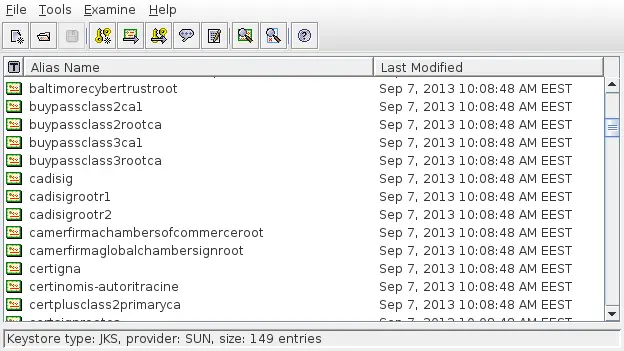
Portecle
Portecle is a free Java program that allows you to manage a keystore in a graphical environment. You can run it on different platforms (Linux, MacOS, Windows).
KeyStore Explorer
KeyStore Explorer works similarly to the previous program and is also cross-platform.
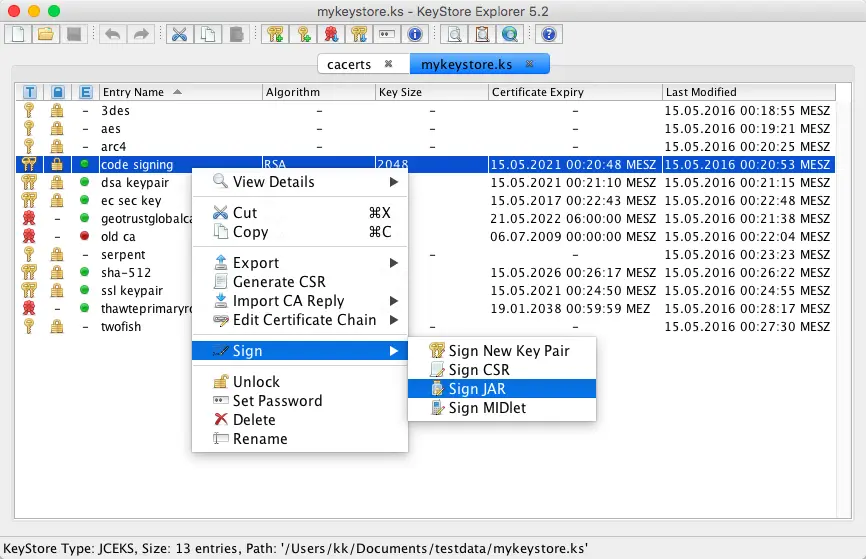
However, the logic of both programs is similar to the original keystore; as a result, it may not save you much work.
Is it too much for you?
If you get stuck on any step, don't hesitate to contact our customer support, who will advise and help you.


ZONER, inc.
3902 Henderson Blvd Suite 208-187
Tampa, FL 33629
Reg. No.: 49437381
VAT ID: CZ49437381
Has this article been useful?
Thank you for your feedback on this article.
We are sorry that you did not find the required information here.
Please help us to improve this article. Write us what you have expected and not found out.